Item Legacy Media · Product film
Meet Item Legacy
Follow a useful collection record, create a collection, choose a collectible template and related collection tasks.
3:12 · English
Published October 26, 2026
Narrated with a local synthetic voice. Demonstrated with fictional inventory in an isolated local Item Legacy app. On-screen QR codes point to that local demo, rather than a production item link. Current application screenshots illustrate the updated workflows; clicks are not recorded in those regions.
English captions available in the player controls.
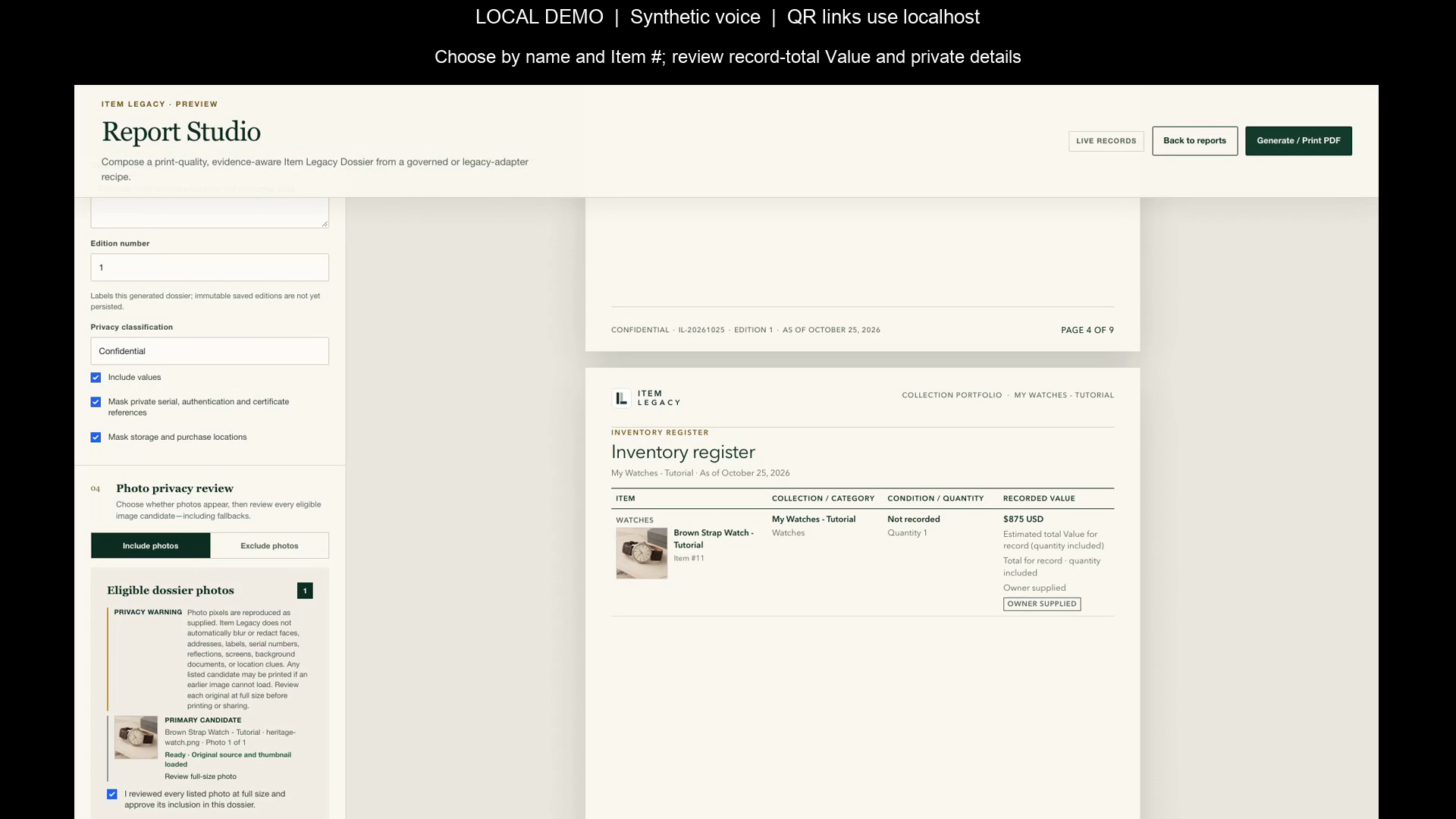
Read transcriptThe demonstration shows the report preview and print control; the native Save as PDF result was not captured.
Read the transcript
Begin with one object you can recognize. Item Legacy keeps the details you record, photographs, documents and value history together in a private item record. Start with what you know, and add sourced detail as you learn more. Open Collections and choose New collection. If the list is empty, choose Create collection. Give the group a clear name, then submit Create collection. A collection groups related objects; each item holds its own details. From the saved collection, choose Add item, or use Add Item in the navigation. Use Collectible template to choose General Item or a specialist template. The fields shown first are useful starting points; every specialized field is optional. Relevant details and Recommended Details adapt to the entries you make. Open Show More Collectible Details, or Show More Banknote Details, for the rest. Saving a new item assigns a number within your account, displayed with a hash sign, such as number twelve. Ordinary edits keep that number. Deleting an item can make its number available for another item. The displayed number is separate from the UUID in the private item address; it is not a permanent global identity. Choose clear photographs from your device. You can select multiple photos within the four-megabyte total limit for the batch. Wait for the upload to finish, then reopen the saved image and check that it is usable. Include useful angles and identifying details. Review every photo before exporting or sharing a report, because text privacy controls cannot conceal information inside an image. Open All Items, then Search and filters. Search recorded text, select the filters you need, and apply them. Template-specific filters depend on the selected template and field. Check active filters if a record seems missing, then open the result and confirm the saved details and photo. Value is an estimate recorded for the item; Cost records what was paid. They answer different questions. Read the currency shown with each amount. New entries use USD; existing or imported records can show another currency. Review quantity and the active template’s value basis before comparing totals. A recorded estimate is not an independent appraisal or a guaranteed selling price. Open Reports and select a report available to your account. In Report Studio, choose records by name and saved Item number. The same account-local reference appears in Dossier registers and item details. Review the scope, the active template’s value basis, and every photograph before sharing. Record-total Value already includes the full recorded quantity; do not multiply it again. Check the preview, acknowledge the current photo set when required, then choose Generate / Print PDF. Check the saved PDF itself. Open Import & Export and choose the export scope you need. Download the CSV, open it in a spreadsheet, and check the expected rows. The source_item_number column is an informational account-local reference. Photo and document counts are not the original files. Keep originals and review private details before sharing the export. Return to the same saved item when you learn more. Update sourced details and review the saved result. Use the current Customer Guide for instructions and available plans. Begin with what you know, and keep a record you can maintain.
More ways to watch · 3 editions
Meet Item Legacy · Short overview
Follow create a collection.
Narrated with a local synthetic voice. Demonstrated with fictional inventory in an isolated local Item Legacy app. On-screen QR codes point to that local demo, rather than a production item link. Current application screenshots illustrate the updated workflows; clicks are not recorded in those regions.
Read this edition’s transcript
Open Collections and choose New collection. If the list is empty, choose Create collection. Give the group a clear name, then submit Create collection. A collection groups related objects; each item holds its own details. From the saved collection, choose Add item, or use Add Item in the navigation.