Item Legacy Media · Getting started
Your First Collection and Item
Create your first collection, save one item, add its first photograph, and find the same record again. Follow a simple watch from a blank form to a useful starting inventory.
4:09 · English
This video uses AI-generated narration.
English captions available in the player controls.
Read transcriptRead the transcript
A useful inventory can begin with one object. In this tutorial, we will create a collection, save one item, and add its first photograph. This simple watch record is our destination. You do not need a complete history or every detail before you start.
If you are new to Item Legacy, Start your free inventory opens the account creation page. If you already have an account, choose Sign in. Complete your own account steps before following along. We begin inside the account; registration and verification are not shown.
Open Collections and choose Create collection. Give the group a clear name. Here, we are using My Watches. The collection name is required. We will also select Watches as the category, so the item can inherit the right context. Leave the other details until you have something useful to add.
Choose Create collection to save. After the collection opens, check its name. It is ready for its first item. A collection gives the object a place to belong; the item record is where its individual details will live. Choose Add item from this collection to continue.
The new item form keeps My Watches selected and shows the category inherited from the collection. Start with the required fields: its collection, an item name, and a positive quantity. Name this one Brown Strap Watch. Quantity is already one. Keep that value when you are recording one object, and leave the category override alone.
Now add one useful description: a light dial, silver colored case, and brown leather strap. Describe what you can see without guessing a maker or age. Purchase cost and Current estimated value mean different things. One records what you paid; the other is your current estimate. Both can stay blank when you do not know.
At the bottom, the form offers Save and continue to photos, or Save and finish later. We will choose Save and finish later, then reopen this same item. Check the name, collection, and description after reloading. These are the details we just saved, with quantity at one and both monetary values left blank.
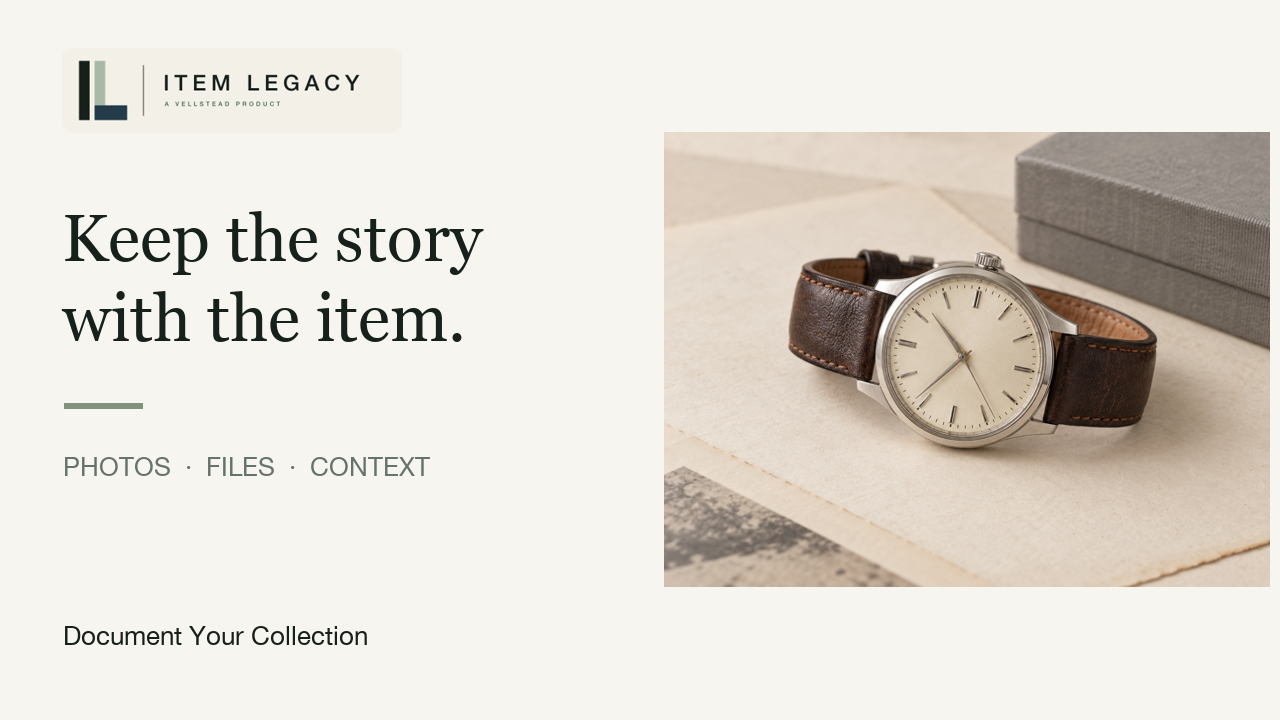
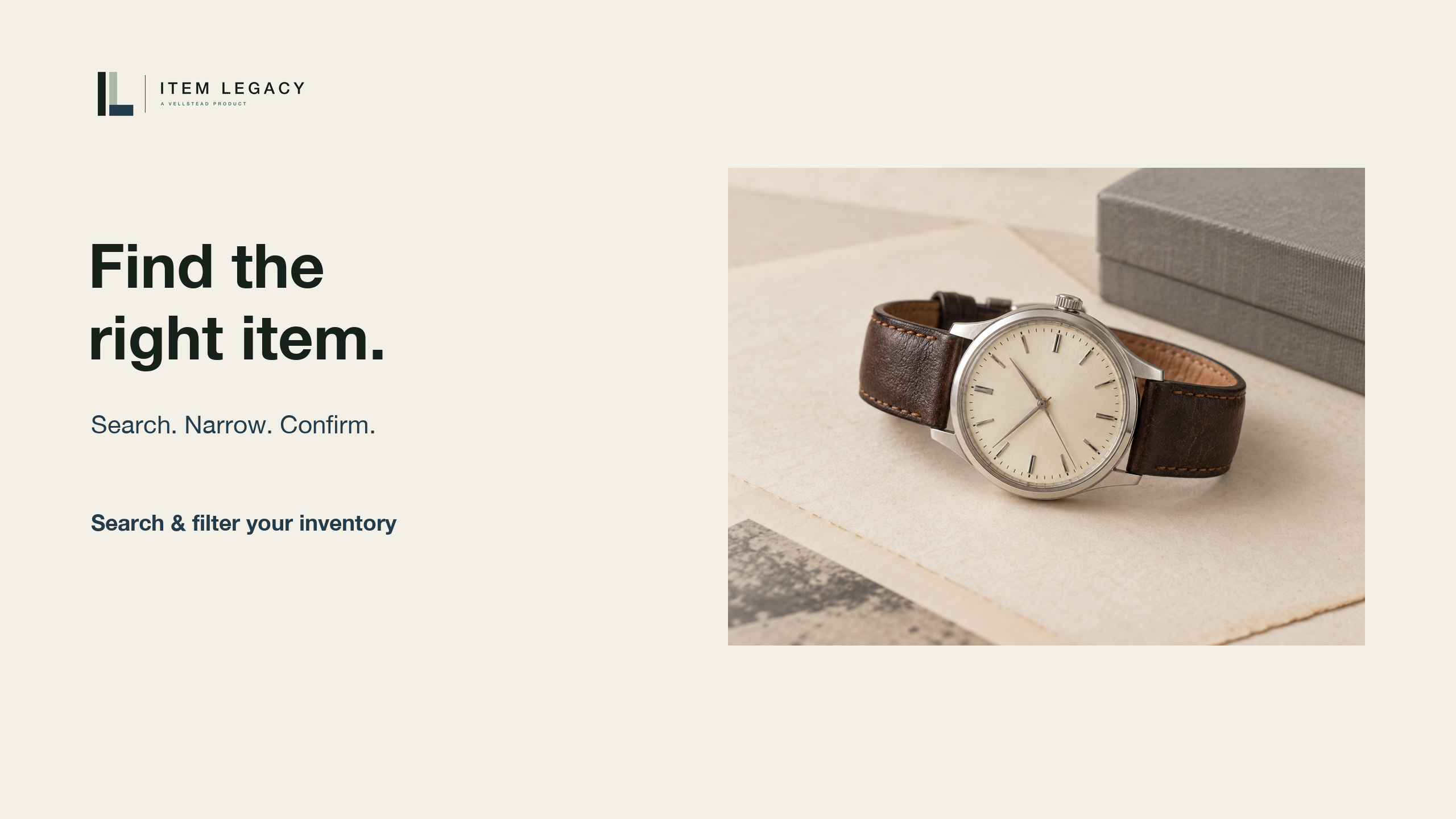
Under Add photos, select your first image. Choose a clear photograph that helps you recognize the object. Wait for the upload to complete before moving on. When the photograph appears, open it to check the usable image. Here, the light dial and brown strap match the description in our saved record.
Return to the collection. Brown Strap Watch now appears in My Watches. Open it again and check that the photograph is still there. You can also return through All Items. The collection, item details, and image now give you a useful starting record that you can recognize and find again.
That is a good first session: one collection, one saved object, and one photograph. Next time, add another object or a supporting file when you have it. Already signed in? Start with something nearby. New to Item Legacy? Visit Item Legacy dot com and start your free inventory.
On screen
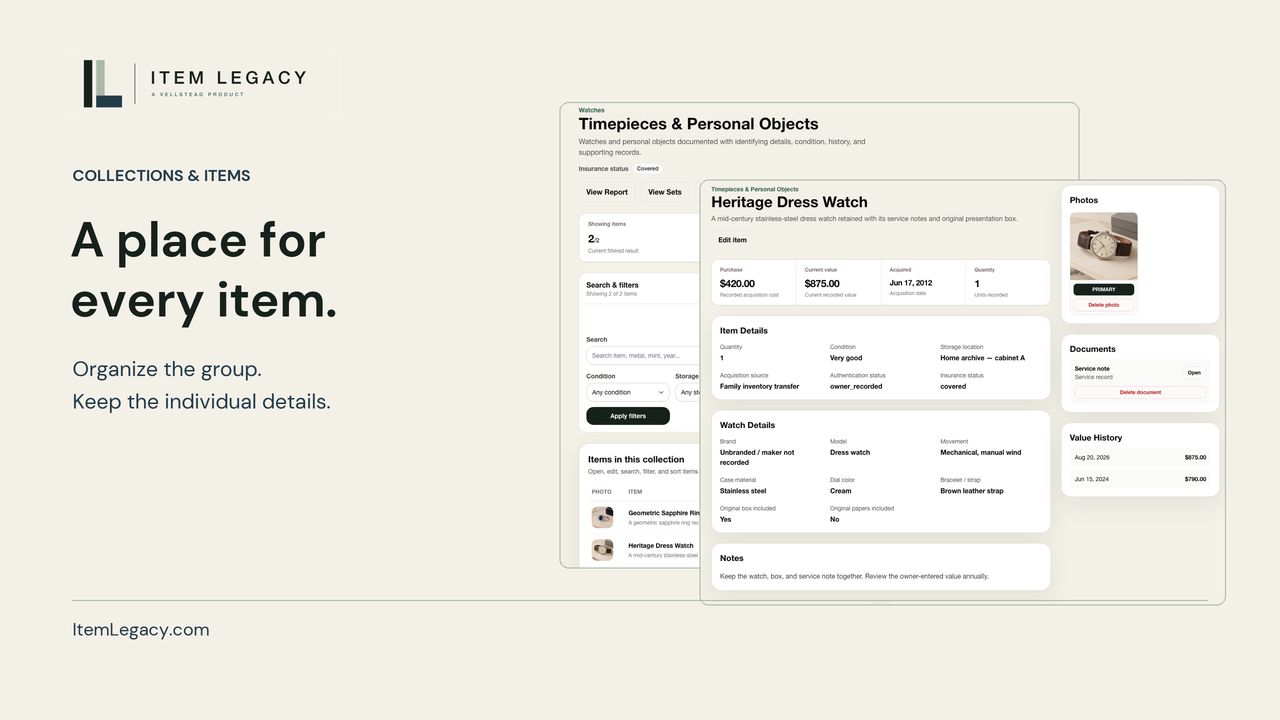
The tutorial begins with the finished Brown Strap Watch record, then shows the public account entry points. Registration and email verification are not demonstrated; the product journey begins inside an account.
The My Watches collection is created with Watches as its category. The new item keeps this collection and inherited category, with Brown Strap Watch as its name and quantity one. A description is added; purchase cost and current estimated value remain blank.
Save and finish later creates the item. The same record is reopened and reloaded before its first photo is uploaded. After readiness, the usable photo opens. The watch is found again through its collection and All Items. The closing QR links directly to signup, also available below the player.
Shorter ways to watch
The journey at a glance · 55 seconds
A quick view of the collection, saved item and first photograph.
This video uses AI-generated narration. English captions are included in the video.
A closer view for your phone · 33 seconds
Focused views of the same workflow in a vertical edit.
This video uses AI-generated narration. English captions are included in the video.
The first photograph · 15 seconds
Watch the first photo finish uploading and open the usable image.
This video uses AI-generated narration. English captions are included in the video.